

The highest resolution isn’t automatically the best choice: a camera used online can capture photos at up to 4K on capable hardware, while Full HD is 1920 × 1080 pixels.
It’s easy to focus on resolution alone, but frame shape and frame rate also affect what you see on screen.
This guide explains how megapixels relate to resolution, what aspect ratio and frame rate tell you, and how to test camera access in your browser and troubleshoot common connection issues.
Key Takeaways
- Use resolution to understand image dimensions, but don’t treat megapixels as the only measure of camera performance.
- Compare aspect ratio and frame rate to see how the image will fit your screen and how smoothly movement appears.
- Allow browser access to the camera when prompted; if a webcam won’t connect, check its cable and try another port.
- Once you know what you need, explore AfriCam Online’s camera range to compare equipment for your photography or everyday use.
Camera resolution and megapixels
Resolution is the number of pixels in an image, shown as width × height. A webcam set to 1920 × 1080 produces a frame with more pixels than one set to 640 × 480. Those dimensions help you compare image size, but they don’t describe every part of image quality. Lighting, focus and the camera’s sensor also affect the result.
A megapixel means one million pixels. Resolution figures can therefore help you understand how much image detail a camera records. For example, 1280 × 720 is HD, whilst 1920 × 1080 is Full HD. The larger dimensions contain more pixels, which can give you more room to crop or view an image on a larger screen.
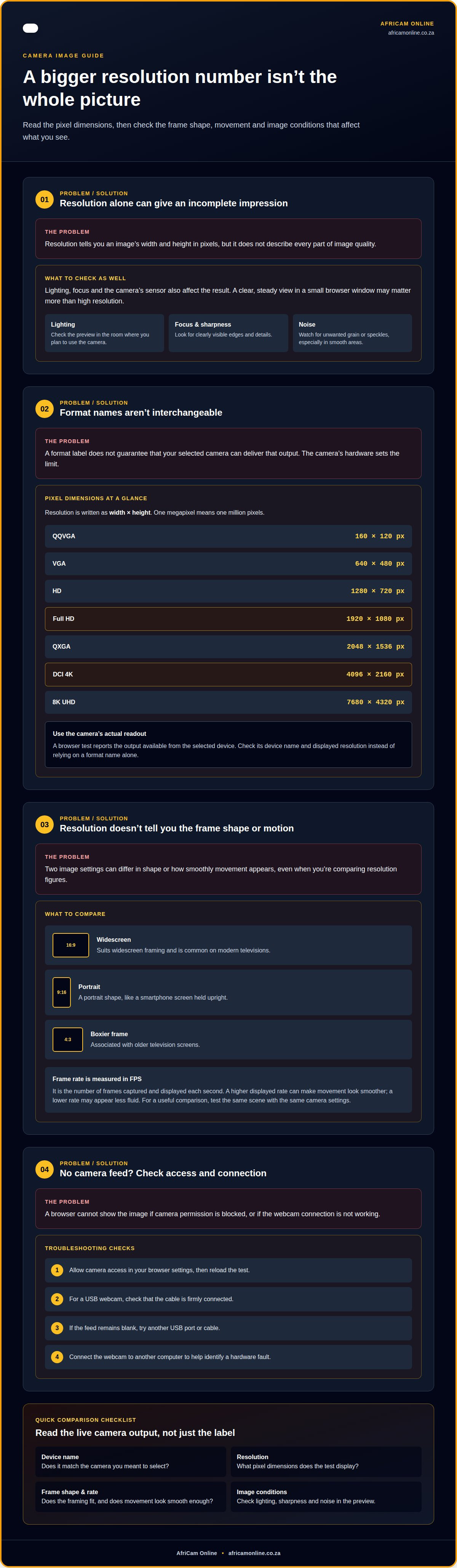
- QQVGA: 160 × 120 pixels.
- VGA: 640 × 480 pixels.
- HD: 1280 × 720 pixels.
- Full HD: 1920 × 1080 pixels.
- QXGA: 2048 × 1536 pixels.
- DCI 4K: 4096 × 2160 pixels.
- 8K UHD: 7680 × 4320 pixels.
These formats aren’t interchangeable labels. DCI 4K and 8K UHD have different pixel dimensions, so check the actual resolution in the camera’s settings. An online camera test can display the webcam’s resolution, aspect ratio, frame-rate capabilities and device name. That gives you a practical readout instead of relying on a model description alone.
Hardware sets the limit. A camera online can capture photos at resolutions up to 4K when the device supports it. The browser test can only show the output available from your selected camera. If its displayed resolution is lower than expected, review the camera settings and confirm the correct device is selected. Installing another app won’t increase the webcam’s underlying resolution.
Match resolution to the task. For a video call in a small browser window, clear lighting and steady framing may matter more than high resolution. If you plan to crop images, higher pixel dimensions can give you more flexibility. On a large screen, low-resolution footage may look less sharp because each pixel appears larger.
Use the test’s on-screen information to compare options rather than relying on the biggest number. Check that the displayed device name matches your webcam, then note its resolution and frame rate. On a phone, switch between the selfie-facing and rear-facing cameras to compare them. The browser needs permission to display a camera feed.
The webcam test lists 8K UHD resolution as 7680x4320. Treat that listing as a format label paired with its stated pixel dimensions, rather than as a guarantee that every webcam can deliver that output. The camera’s hardware remains the limit, and the test reports only the output available from the selected device. When checking a camera, compare the resolution shown for that device with the setting you expect to use. This helps distinguish the selected camera’s current output from a format name in a product description. Consider whether that level of detail is useful for your intended viewing or cropping, while keeping lighting, focus and framing in mind.
Your camera
An online camera test displays your webcam feed in the browser after you grant permission, so you can check the framing before a call or recording. If the permission prompt is blocked, the browser cannot show the image. Review the site’s camera permission in your browser settings, reload the test, and allow access.
On a phone, switch between the selfie-facing and rear-facing cameras to choose the view you need. This lets you check that the correct lens is active before taking a photo or recording a clip. The test can display only the camera selected by your device and browser.
Use the preview to assess composition, not just whether an image appears. A rule-of-thirds grid divides the frame into sections, while centre guides help position a face or object. Place your subject on a grid line for an off-centre composition, or use the centre guide for a straightforward video call. Adjust your seat or camera angle until the subject sits comfortably in frame.
For a quick capture, use the browser camera’s self-timer. A 3-second delay gives you time to settle after pressing the button. If the tool supports recording, make a short clip with audio, then review it before downloading. Listen for clear speech and watch for framing changes. A preview can reveal placement issues before you use the camera for a longer recording.
Try these checks if a webcam doesn’t appear:
- Confirm the browser has permission to access the camera.
- For a USB webcam, check that its cable is firmly connected.
- Try another USB port or cable if the feed remains blank.
- Connect the webcam to another computer to help identify a hardware fault.
Keep privacy in mind when choosing a test. A browser-based test can run locally on your device, keeping its operations in device memory rather than uploading or sharing them. The test described here says it cannot see or record the webcam image. Close the test tab when you’re finished, especially on a shared computer.
Compatibility can depend on your browser and device. The webcam test is listed for Windows, macOS, Linux, Android and iOS, and for Chrome, Firefox, Safari, Edge and Opera. Some default Android browsers, including Huawei Browser and Mi Browser, may have compatibility issues. If the preview fails, try a supported browser before assuming the camera is faulty.
Camera information
A camera preview can reveal more than resolution. Check frame rate, lighting, sharpness and noise to see how the image performs. Frame rate, measured in FPS, is the number of frames captured and displayed each second. A higher displayed rate can make movement look smoother, while a lower rate may appear less fluid. For a useful comparison, test the same scene with the same camera settings.
Lighting affects how clearly you can see details. Check the preview in the room where you plan to use the camera. If your face looks dim, move closer to a light source and review the image again. Sharpness describes how clearly edges and details appear. Noise appears as unwanted grain or speckles, especially in areas that should look smooth. These checks help you assess a webcam for calls or recording.
Aspect ratio describes the shape of an image. Choose a format that suits the screen or output you have in mind:
- 16:9 suits widescreen framing and is common on modern televisions.
- 9:16 is a portrait shape, like a smartphone screen held upright.
- 4:3 gives a boxier frame, associated with older television screens.
- 3:4 offers portrait framing for a classic-print style.
Some camera tools let you change framing before capture. A 16:9 view can fit a widescreen cover, whilst 4:3 or 3:4 may suit a more traditional print shape. Check the crop in the preview before saving. A change in aspect ratio alters the frame’s shape, so parts of the scene may fall outside it.
For video, check the recording quality setting as well as the live preview. The online video recorder offers a 1080p option, and the Camera web app records at 1080p. Select the setting that matches your intended use, then review a short clip. A sharp still preview alone doesn’t show how movement or sound will appear in a recording.
Zoom controls also affect composition. The online camera has presets of 1x, 2x and 3x. The Camera web app offers 0.5×, 1×, 2× and 5× zoom when the device supports them. Try each available view and watch the frame edges. A wider setting includes more of the scene; a tighter one brings the subject closer in the preview.
Use a 10-second photo timer when you need time to settle into position. For your next step, compare camera options against the way you plan to frame and record images.
The webcam tool can measure frame rate, lighting conditions, image sharpness and noise levels. Treat these measurements as a structured complement to the preview: they can help you spot changes when you adjust the lighting or framing and assess whether the image is clear enough for your purpose. Test under the conditions in which you expect to use the camera, so the measurements reflect your actual setup.
AfriCam Online: Cameras
AfriCam Online offers cameras for your next step, whether you’re choosing equipment for family photos, travel or creative work. If moving footage matters to your plans, camera gimbals are another option to consider alongside a camera.
Before insured dispatch, products are inspected for condition and completeness at the Cape Town facility. Orders include 30-day returns from delivery and applicable manufacturer warranties. These details give you practical information to consider when comparing camera options and planning your purchase.
If you’re ready to choose equipment that suits your needs, contact AfriCam Online to discuss your next step.
Choose equipment for what comes next
Start by matching the camera to the moments you want to capture. Consider where you’ll use it, who will handle it, and whether you’ll take still photos, record video, or both. This practical shortlist can help narrow your options.
AfriCam Online offers cameras, E-Bikes & Scooters, and Power Stations. Its team’s practical knowledge of the camera range can help you consider which options suit your intended use.
Ready to take the next step? Contact AfriCam Online to discuss your camera requirements. Choose with your plans in mind and move forward at your own pace.
Frequently Asked Questions
What does “camera online” mean?
The phrase can mean testing a webcam in a browser or buying a camera through an online shop. This guide covers both: checking a device’s camera and choosing equipment to purchase. For example, you might test your laptop webcam in a browser, then compare dedicated cameras for travel photography or family occasions.
Where can I buy cameras online in South Africa?
You can buy cameras through AfriCam Online’s online shop, which serves customers across South Africa. Browse the range and consider which camera suits your needs, whether for family photos, travel or creative projects. Review the product information and focus on the features that matter for how you plan to use it.
What should I check before buying a camera online?
Before ordering, check the camera’s intended use, included items, power requirements and storage compatibility. A camera for trips should suit how you prefer to carry it, while frequent recording makes battery and storage details especially relevant. Compare the listed features with your plans, and make sure the controls and recording options suit the way you expect to take photos or video.
How can I compare camera types and specifications before buying online?
Start with the type of photography you plan to do, then compare cameras for that use. A compact model may suit everyday carrying, while a bridge, mirrorless or DSLR camera may better match different handling and creative preferences. Compare lens options, controls, recording features and portability side by side. A short list of must-haves helps distinguish useful specifications from features you’re unlikely to use.